Start the console and sign in
Starting the console, keeping it running, reaching it through a tunnel or on a name of its own, signing in, and sudo mode.
Part of The console, page by page.
Starting it
noust web start           # foreground, 127.0.0.1:8080; prints the access token; Ctrl+C stops it
noust web start -d        # background until 'noust web stop' or the next reboot; prints the token
noust web enable          # a systemd service: survives reboots; prints the token
noust web token --new     # issue a token to sign in with
noust web status          # running or not, and whether as the service or in the background
noust web stop
Every start issues a new access token and prints it once, in the same banner whichever way
the console runs: in the foreground, in the background with -d (the parent process prints
it before handing the server over to the child), or as a service with noust web enable. It
is never silently issued unseen, and systemd starting the service again (at boot, after a
failure, after an upgrade) issues none: it keeps serving the token noust web enable
printed. noust web token without options only reports whether a token is issued: the token
itself is stored as a salted hash and cannot be shown again. A running console reads the
token from disk on every request, so issuing a new one with noust web token --new retires
the old one at once, with no restart needed; see security.md
for more, including what --regenerate invalidates beyond the token itself.
A foreground console runs until you press Ctrl+C or close the SSH session it was started
from; its banner says so, and prints the noust web enable line that would keep it running
with the same options. noust web start -d runs it as a background process, with its log in
/var/log/noust/web.log and its PID in /run/noust-web.pid: it does not start again
after a reboot. noust web restart takes the same options as start and does not remember
the ones used before: pass them again.
Keep it running
noust web enable runs the console as a systemd service, noust-web.service: started now,
started again at every boot, and restarted if it fails.
noust web enable                                  # 127.0.0.1:8080, reached over SSH
noust web enable --host 0.0.0.0 --self-signed     # any option 'noust web start' takes
noust web status                                  # Runs as: noust-web.service (starts at boot)
journalctl -u noust-web                           # its log
noust web disable # stop it, disable it and remove the unit- It takes the options
noust web starttakes, checked by the same rules: binding beyond loopback without TLS is refused here too, before anything is written. There is no-d: systemd keeps it running. - It writes
/etc/systemd/system/noust-web.service, whoseExecStartis this machine'snoustbinary running the console in the foreground with those options, then enables and starts it, waits until it listens, and only then prints the access token and how to reach it. If it does not come up, the journal is shown instead, and no token is issued. - The token is printed on your terminal by
noust web enable, never by the service: the service's output is the journal, which more accounts can read than root. The unit file holds no credential either. A lost token is replaced withnoust web token --new, which the running service accepts at once. - To change the options, run
noust web enableagain with the new ones: the unit is rewritten and the service restarted.noust web disableremoves it; the token and the console's state under/etc/nouststay. - While the service runs,
noust web startandnoust web restartrefuse to start a second console and name the service, andnoust web stoppoints atnoust web disable(orsystemctl stop noust-web, which stops it until the next boot). - A console already running with
-dhas to be stopped first (noust web stop), so the service can take its port. - The service runs as root with systemd's own
PATH, like every other unit. The unit's hardening leaves everything the console does as root intact (installing packages, writing/etc, deploying into/var/www); the template explains each directive. - Upgrading the package restarts a running
noust-web.serviceonto the new version; removing the package stops and disables it.
If the console's Python packages are missing, noust web start says which and offers to
install them; noust web install --apt or --pip installs them directly.
Reaching it
The console acts as root, so it listens on loopback unless you give it TLS.
Over SSH (the default and the safest). Leave it on 127.0.0.1 and forward the port from
your own machine. 127.0.0.1 answers on the server itself and nowhere else, so opening the
server's address in a browser will not reach it; the banner prints the exact line to run:
ssh -L 8080:127.0.0.1:8080 root@server.example.com
# then open http://localhost:8080
With TLS served by Noust. Binding to anything but loopback requires a certificate:
noust web enable --host 0.0.0.0 --tls-cert /etc/letsencrypt/live/panel.example.com/fullchain.pem \
                               --tls-key /etc/letsencrypt/live/panel.example.com/privkey.pem
noust web enable --host 0.0.0.0 --self-signed   # minted under /etc/noust/panel-tls, reused while valid
Behind a reverse proxy that terminates TLS. Keep the console on loopback and declare the
proxy, so the session cookie is marked Secure and client addresses are the real ones:
noust web enable --trusted-proxy 127.0.0.1On a name of its own, over TLS (guided). For a browser without a tunnel:
noust console expose --domain console.example.com --allow-ip 203.0.113.0/24 --allow-ip 198.51.100.7
noust console status                    # where it answers, and whether everything is still in place
noust console unexpose                  # removes exactly what expose made
expose writes an nginx site for the name (Noust's own, marked "Generated by Noust"), obtains
a Let's Encrypt certificate for it, makes the console believe nginx's forwarding headers (the
service gets --trusted-proxy 127.0.0.1 and restarts), sets web.public_url to the name and
web.allowed_hosts to answer only it. nginx replaces X-Forwarded-For with the address it saw,
so nobody can pick the one the rate limit and the lockout are keyed on, and --allow-ip is
enforced there: everyone else is refused before the console sees them. Before it writes anything
it checks, and refuses with what to do:
- a second factor on every account: any account that can sign in with a password alone stops it (before any account exists, the access token's own second factor must be on);
- the name: not an application's (no application site is edited), not a site Noust did not
write, and resolving to this server's addresses (
--skip-dns-checkfor a server behind NAT); - the ENS profile: the console stays on loopback unless
--force-ensis given, confirmed, with--allow-ip; the override is audited (console.exposerecordsforced_ens); - the console is a service (
noust web enable), and this is not a hub (a hub has no nginx; it serves its own TLS, see CENTRAL.md).
There is no plain-HTTP form: until the certificate exists the site answers 404 to everything
but the challenge. A step that fails undoes what this run made, and unexpose removes only what
the record says Noust created: the site and the certificate when it made them, the trusted proxy
when it added it, and web.public_url and web.allowed_hosts while they still hold what it
wrote. The break-glass access token still signs in at the new address: keep it offline.
Over the API it is GET, POST (a job) and DELETE (a job) on /api/console/exposure, and
POST /api/console/exposure/preview to see the checks' answer without changing anything. Both
changes ask for sudo mode and server.host_access; the console restarts a few seconds after the
job ends.
Every example here works with noust web start as well, for a console that should not
outlive the session.
--allow-ip ADDR/CIDR (repeatable) restricts who may connect at all. --insecure-http serves
cleartext beyond loopback; the token and the session cookie then cross the network
unencrypted. See security.md for the full rules.
Signing in
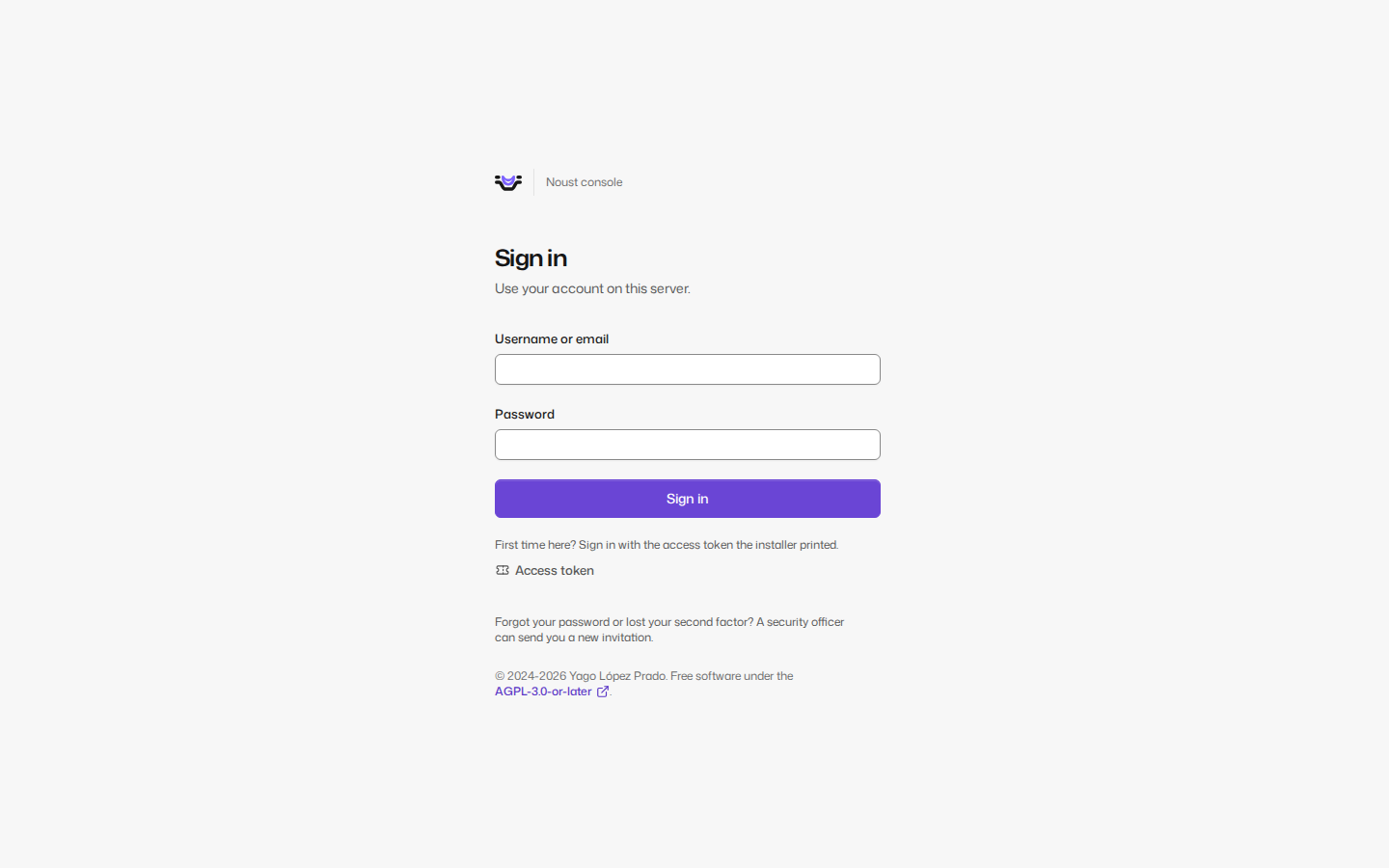
Sign in with your account: username, password and a code from your authenticator app, or a
passkey on its own. Browsers offer passkeys only on a certificate they trust, so over an SSH
tunnel or with a self-signed certificate the page says why the button is missing. The page does
not show the host name or the version before you sign in; auth.login_label sets a line that
tells your servers apart. After signing in, the console says when and from where you last signed
in and how many attempts failed since.
A server with no accounts signs in with the access token (the Access token button, or the
link the installer printed, which opens the page on its field) and then opens one form that
creates the first administrator and signs in with it: a username and a password, with the name and
the email a click away. The console then offers to Protect your account, which can wait (Set
up later) unless a compliance framework asks for a second factor or the console is published.
Once an account exists, the access token is emergency access: it still signs in, and each use is
recorded. An invited person opens the invitation link, chooses a password and sets up a second
factor; where the server can send mail the invitation dialog also mails the link, and the sign-in
page offers "Forgot your password?", which mails a link that needs the authenticator as well. An
account sets up a second factor, an authenticator app or a passkey, at its first sign-in, before it
can do anything else, when a compliance framework asks for one or the console is published or
listens beyond loopback; elsewhere it is set up at Account > Sign-in security whenever the
person likes. When auth.notice.text is set, a notice of rights and
obligations is shown and must be accepted.
A session ends after 30 minutes without activity and 12 hours after sign-in (auth.session.*).
Five failed attempts lock the account for 15 minutes, and five from one address lock that
address; the page counts down.
Sudo mode
Destructive and credential-changing actions (deleting anything, restoring a backup, revealing
or editing an .env, moving to instant rollback, changing limits, editing a unit or a site,
writing an application's deploy hooks, adopting a Compose stack, SQL in write mode, server
changes, managing accounts, changing settings, issuing a token) ask
you to confirm it is you: a dialog titled "Confirm it's you" asks for your passkey, or a code from
your authenticator app or one of your backup codes (for the access token, its code, or the token
itself when it has none). You already gave your password and a code when you signed in, so one
factor is enough, unless the server asks for the password again (auth.sudo.require_password,
always under the ENS profile), in which case the dialog also shows the password field. The
confirmation stays open while you keep working: every destructive action extends it, for up to 2
hours from when you confirmed (15 minutes without one, 2 hours at most, under auth.sudo.*; 10 and
30 under the ENS profile), and the dialog says so with the server's numbers. The action you were
taking is retried once confirmed. Flows that already know they need it, such as deleting an
application, ask before their own confirmation dialog, so only one is ever on screen.
When approvals are on, an action that needs a second person becomes a request instead of running: the console says so, it appears under Settings > Approvals for whoever may decide it, and once approved you run it again from the same place, once.